
Saved Queries
There's no point in writing the same queries over and over, and if you're like me, you hate writing them in the first place!
Saved Queries #
You can create an endless number of saved queries, and then organize and access them in a bunch of ways.
Saved queries and the favorites bar are organized in the editor's sidebar, which is also where you export and import saved queries.

In the Saved Queries sidebar, you will see multiple sections and groups:
| Name | What is it |
|---|---|
| Queries | These are all of the query editors — not saved queries. |
| Saved Queries | Queries saved for the current saved connection only. In a connection to a different server, you would not see these. You can place queries here to keep your saved queries list more tidy when you have many different saved connections. |
| Shared Saved Queries | Saved queries for every server — these are accessible from any connection. Placing saved queries here keeps them always available, but can be messy over time. |
| Saved Queries → Recent | Every query you execute within this connection will appear in this Recent list. |
| Favorites Bar | Saved queries or folders added into the Favorites Bar group in the sidebar, will appears items in the Favorites Bar itself. |
To Create a Saved Query #
-
Type any queries into the current query text view
-
Click on the Add as a saved query button in the Favorites Bar.
-
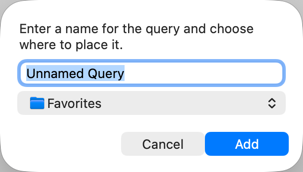
Name the query and choose a folder for it.

Or:
-
Click on the menu to the right of the Saved Queries or Shared Saved Queries section header in the sidebar
-
Click on
-
Any changes in the query editor can then be saved to the file.
-
Type any queries into the current query text view
-
Click on the "Save" button above the query text view
To Edit a Saved Query #
-
Select the query in the sidebar
-
Modify its SQL statements in the query text view
-
Click Save in the execution bar above the query text view
To Run a Saved Query #
-
Select the query in the sidebar
-
Click Save in the execution bar above the query text view
Editing an SQL File #
You can also have a query editor directly edit and run the contents of an SQL file.
-
Click on the menu to the right of the Queries section header in the sidebar
-
Click on
-
Any changes in the query editor can then be saved to the file.
This is not the recommended way to run huge multi-megabyte or gigabyte SQL files — for that, use the normal Import path — but you can use this for reasonable sized scripts.
To Import/Export Saved Queries #
If you need to move all of your saved queries between machines or hand them off to a colleague, you can export all of your saved queries.
-
Click on the menu to the right of the Saved Queries section header in the sidebar
-
Click on
Other Tips #
-
Drag and drop the saved query row in the sidebar into any other application to drag it as text.
-
Drag and drop any text file into the saved queries list to create a new
-
Click Save in the execution bar above the query text view
Favorites Bar #

The bar above the query text view gives access to your most frequently-used saved queries and recent queries.
Simply select a menu item from any of the pulldown menus, and that query will be inserted into the current query editor text view
- The Recent Queries pulldown lists recent queries that ran successfully.
- The Saved Queries pulldown gives you access to every saved query you have.
The rest of the bar is customizable. Folders inside of the "Favorites Bar" group in the sidebar become menus, and queries become menu items.

Choosing a query from the pulldown replaces the contents of the query field. Hold Option to insert it at the insertion point instead. The Insert and Run buttons in a query's preview item do the same.