
Exporting
Export databases and tables to CSV, Tab, or SQL. CSV and Tab settings can be adjusted for compatibility with other programs, and SQL has numerous options.
Starting an Export #
-
Choose , or right-click an item in the sidebar and choose .
-
Choose the format at the top of the export window.


Exporting SQL #
An SQL export can include table content (as INSERT statements) from multiple tables. Check the tables to include in the Tables list. You can also include the CREATE statements for views, functions, procedures, triggers, and events. Select everything to export a faithful copy of the whole database.
From a Single Database #
Choose the database in the popup. This is the default when you start from a schema object in the sidebar.
Entire Server (MySQL only) #
Choose Entire Server in the popup, then choose the databases and users to export.

Options #
Hover over an option for its tooltip.
Use single transaction for export
Sets the isolation mode to REPEATABLE READ and sends START TRANSACTION before dumping, so the dump is a consistent snapshot without blocking applications. Only InnoDB tables get a consistent snapshot; MyISAM or MEMORY tables may still change during the dump.
Equivalent to
--single-transactioninmysqlpump.Wrap inserts with locks
Writes a
LOCK TABLESstatement before theINSERTstatements in the file. It doesn't lock anything during the export.Disable keys / unique checks
Writes
ALTER TABLE … DISABLE KEYSbefore theINSERTstatements for MyISAM tables, and setsUNIQUE_CHECKSto 0 before the inserts for all tables. Speeds up importing the file.Exported File Name
Click
Customize…in the lower left to build a default file name from attributes of the export, server, and time. See Export Filename Templates.
Exporting to CSV or Tab #
Choose which columns to export, their order, and their header names.
-
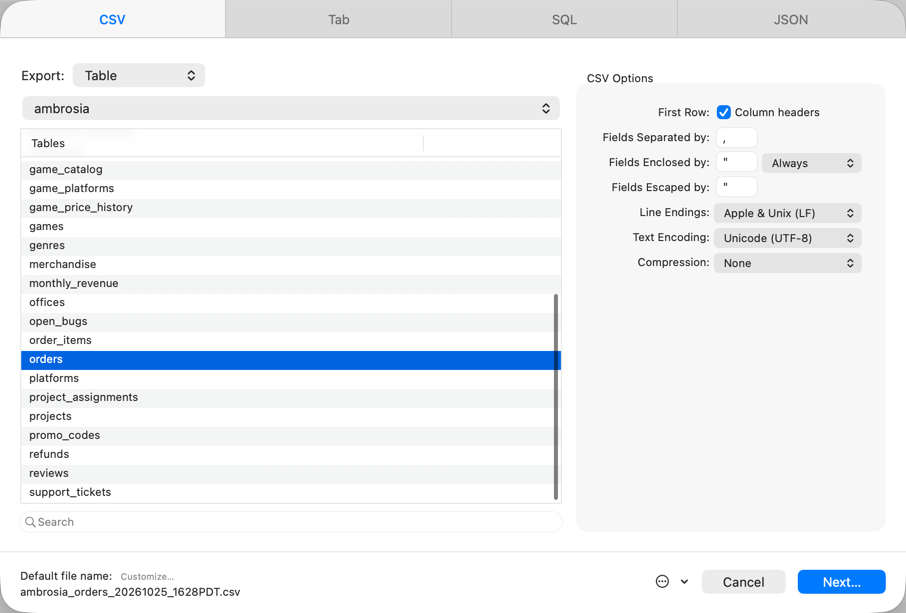
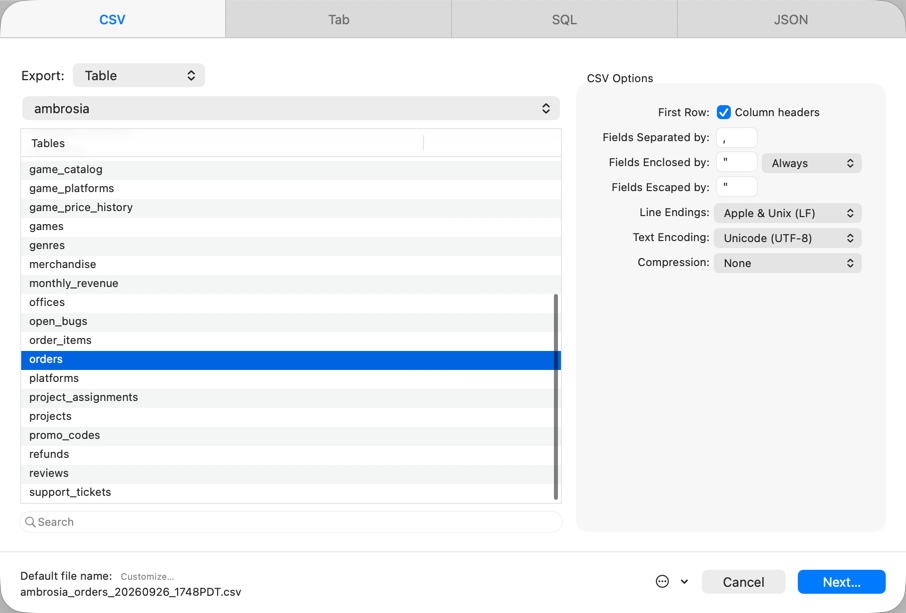
Choose CSV or Tab, and the table to export.
-
Drag the columns you want into the Exported Columns list. Rearrange them there to set their order in the file.
-
Double-click names under Exported Column Names to change the column headers in the file.

