Still have a question? Ask us.
Fixing a recording that looks too dark, as when recording some games.
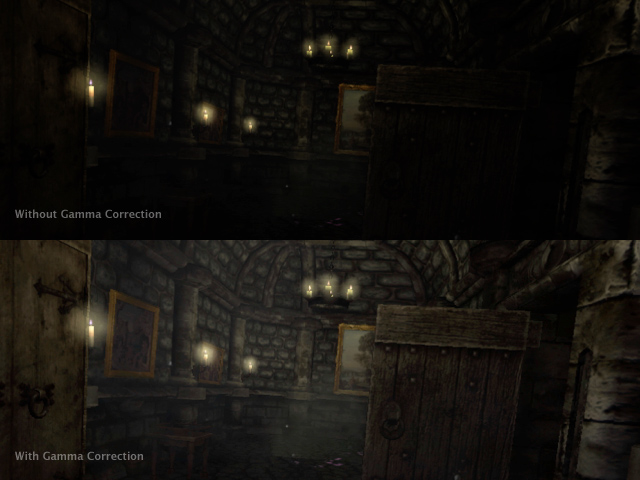
If a game looks dark in your recording, it's because the game changed your display's gamma curves. You just need to change the brightness in Screenflick before exporting.
Some games change your display's gamma curves, and Screenflick can't tell whether to apply that to the movie. Keep reading.
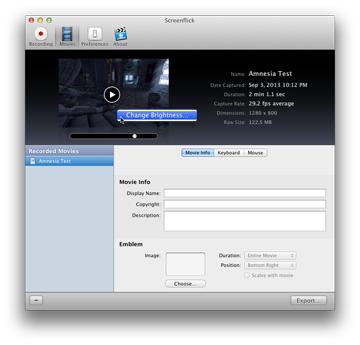
Right-click the movie preview in Screenflick, choose "Change Brightness…", adjust the slider, and export. Keep reading.
Some games have a "gamma" or "brightness" setting that makes everything darker or lighter. A game can do this in several ways, and one of them is to temporarily change your physical screen's settings.
One game that does this is Amnesia. The player explores a very dark and spooky world, and to be sure the player can actually see it, the game offers a gamma slider to adjust the "brightness" to whatever suits their hardware and environment.
The problem with adjusting the screen's gamma is that Screenflick can't know whether it should respect that setting and apply it to the exported video's brightness. Sometimes that would be right, as with Amnesia, but in most cases it wouldn't be.