Recording GarageBand and Logic Pro Audio
Capturing the sound from GarageBand or Logic Pro.
Simple! Change the Output Device setting in Logic's or GarageBand's preferences to "System Setting", and turn on Record System Audio in Screenflick. That's it.
How do I record GarageBand or Logic Pro audio?
Change the "Output Device" setting in the application's preferences to "System Setting", and turn on "Record System Audio" in Screenflick. Keep reading.
In Detail
#
To record GarageBand or Logic Pro
-
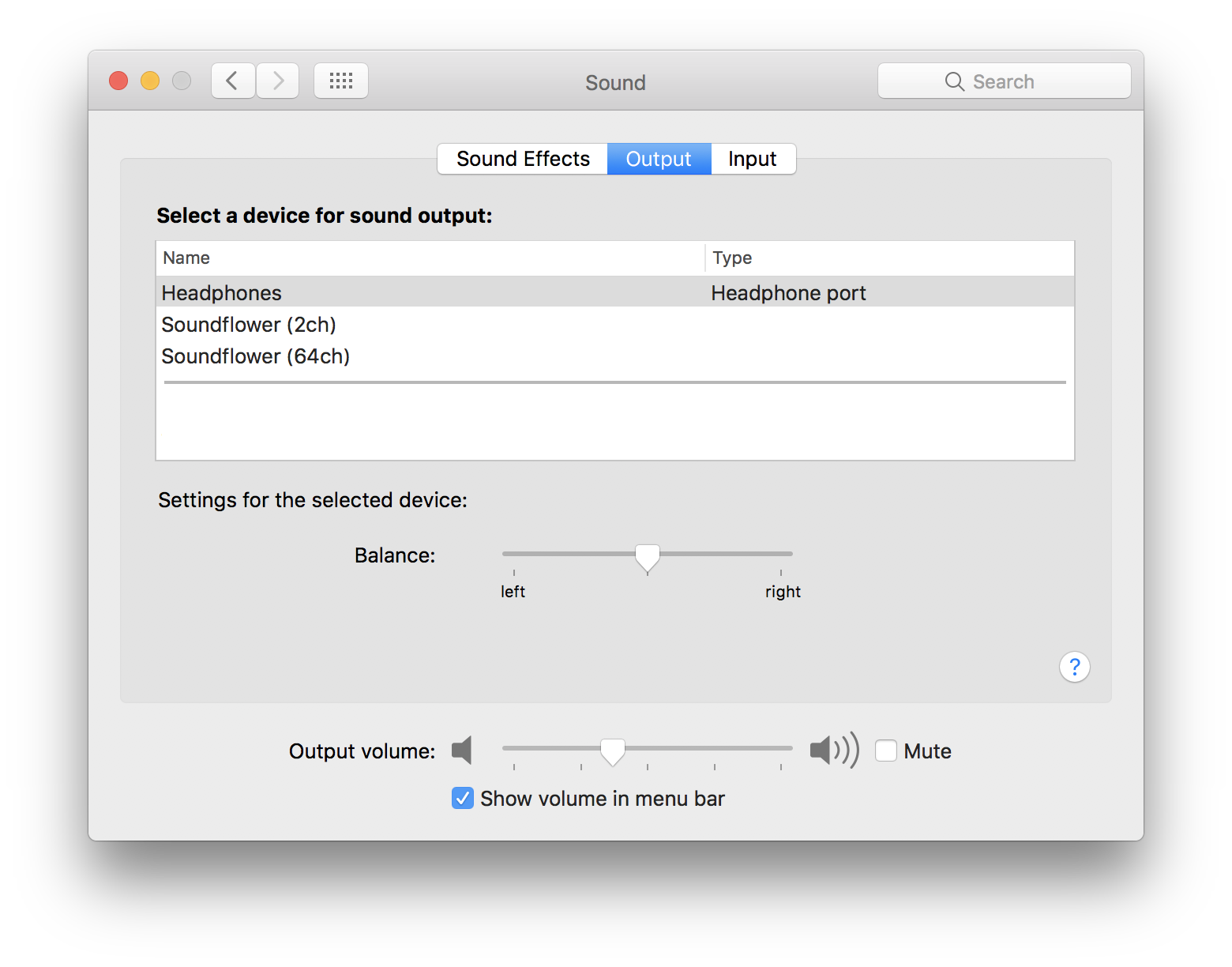
System Preferences. Optionally, select your headphones as the system output device.
-
GarageBand or Logic Pro. In the application's audio preferences, set the Output Device to "System Setting" so it follows the system's output device, which Screenflick changes to Screenflick Loopback during a recording.
-
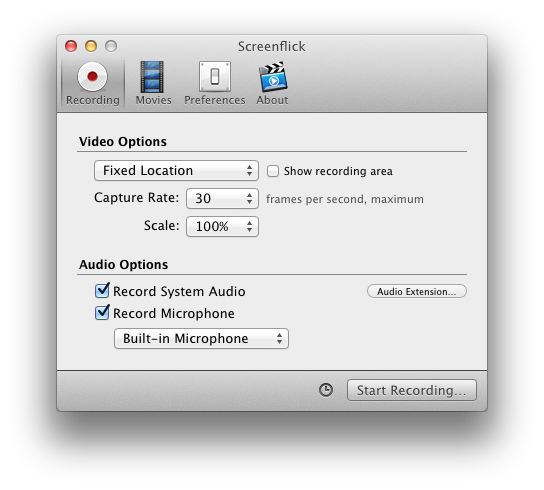
Screenflick. Select your microphone device if you want it recorded, and turn on Record System Audio.